Introduction
Put two identical GPUs in the same machine, run the same workload on both, and the second one will often lag. Same model, same driver, same data — different throughput. It is not thermals or a bad BIOS profile. The second GPU is being starved at the bus level, and the reason has nothing to do with the card itself.
Most of us live on top of drivers and kernel modules and never need to look down at how x86 systems actually move bytes between the CPU, RAM, and PCIe devices. But the moment you start debugging throughput asymmetry, tuning interrupt affinity, or wondering why irqaffinity matters, hardware topology stops being an abstraction.
This post walks through the mechanisms that carry modern PCIe traffic — MMIO for control and DMA for bulk data — then uses that foundation to explain why a “second GPU” on a consumer motherboard is often quietly operating at a fraction of its peer’s bandwidth, and what you can do about it.
Understanding x86 Communication Channels
Modern x86 systems use three primary communication mechanisms to move data between components.
CPU-Memory Bus
The CPU-Memory bus is a dedicated connection between the processor and RAM. Modern CPUs have integrated memory controllers with multiple channels (typically 2-8 depending on the platform). A dual-channel DDR4-3200 configuration provides 51.2 GB/s of theoretical bandwidth to the CPU. No other devices share this bus.
PCIe: Point-to-Point Serial Interface
PCIe (Peripheral Component Interconnect Express) is the lifeblood of modern x86 systems—the primary conduit through which GPUs, NVMe SSDs, and network cards exchange data. Unlike the legacy PCI bus, where every device shared a single line and had to take turns transmitting, PCIe gives each device a dedicated high-speed lane wired point-to-point. Traffic in one slot doesn’t steal bandwidth from another, and each link is full-duplex.
All of those dedicated lanes eventually converge at the Root Complex, the gateway inside the CPU that connects the PCIe fabric to system memory. Every PCIe device hangs off a tree rooted there. When we say a GPU is “directly connected to the CPU,” we mean its slot is wired to a port on the Root Complex with no intermediate switch.
Specifications
PCIe Lanes: A PCIe connection consists of lanes (x1, x4, x8, x16). Each lane contains two differential pairs—four wires total—one pair for transmit, one for receive. More lanes provide proportionally higher bandwidth:
- x1: One lane
- x4: Four lanes (4× the bandwidth)
- x16: Sixteen lanes (16× the bandwidth)
GPUs typically use x16, NVMe SSDs use x4. An x4 card can fit in an x16 slot.
PCIe Generations
Each generation roughly doubles bandwidth per lane:
- PCIe 3.0: ~1 GB/s per lane (x4 = ~4 GB/s, x16 = ~16 GB/s)
- PCIe 4.0: ~2 GB/s per lane (x4 = ~8 GB/s, x16 = ~32 GB/s)
- PCIe 5.0: ~4 GB/s per lane (x4 = ~16 GB/s, x16 = ~64 GB/s)
These are practical throughput numbers accounting for 128b/130b encoding overhead (~1.5% reduction from raw bit rate). A PCIe 4.0 x4 NVMe SSD can hit 8 GB/s, while PCIe 3.0 x4 maxes at 4 GB/s.
DMA: Direct Memory Access
DMA allows devices to read and write RAM without CPU involvement. Instead of the CPU copying data byte-by-byte, devices access memory directly.
The process:
- CPU tells the device: “Write 64KB to memory address 0x12345000”
- Device uses its PCIe connection to write directly to physical memory
- Device signals completion via interrupt
- CPU processes the result
The CPU only issues commands and handles completion—it doesn’t transfer data. For high-throughput devices like 100GbE network cards or NVMe SSDs moving gigabytes per second, this is essential. Without DMA, the CPU would become the bottleneck copying every packet or disk block.
Device-to-device DMA (P2P)—say, NVMe straight into GPU VRAM, or one GPU writing into another—is possible in principle, and libraries like NCCL will use it when the hardware topology allows. For the rest of this post, though, we’ll focus on the common case where data takes the canonical path through system RAM, because that’s what the OS prefers and what most consumer platforms enforce. The reasons are worth understanding:
- Root Complex boundaries: If data must move between different Root Complexes (e.g., between two sockets in a NUMA server), the hardware architecture may force a path through RAM. Even within a single CPU, multiple Root Complexes may exist.
- OS policies: Operating systems prefer data to pass through RAM for visibility and resource management. Data read from an SSD stays in the page cache for faster reuse, and the kernel can enforce integrity checks along the way. Windows often blocks direct device-to-device traffic via ACS (Access Control Services). Linux uses IOMMU and SWIOTLB (bounce buffers) to validate DMA before letting it touch real memory.
The real cost of this “U-turn” is memory bandwidth contention. When traffic detours through RAM—whether it’s SSD → RAM → GPU or GPU → RAM → GPU—it consumes system memory bandwidth twice. CPU workloads and detouring I/O traffic end up fighting over the same DDR channels, and aggregate system throughput suffers.
With these communication mechanisms established, we can now examine the two main ways devices connect via PCIe.
Direct vs Detour: PCIe Connection Methods
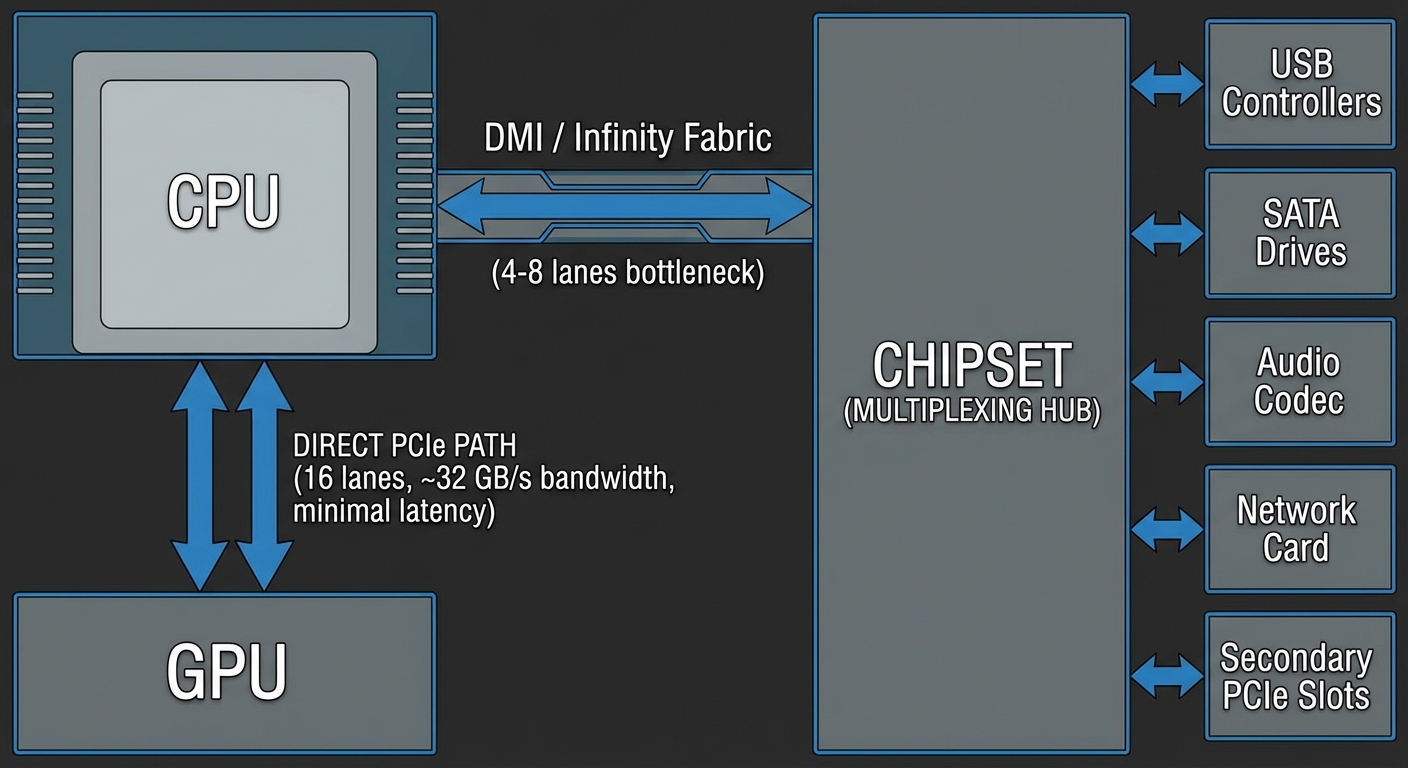
CPU-Direct Connections
Your CPU has 16-20 PCIe lanes (on mainstream platforms) wired directly to the socket. On Intel, these come from the CPU die; on AMD Ryzen, they originate from the I/O die rather than the compute chiplets. HEDT and workstation platforms offer significantly more—Threadripper and EPYC provide 48-128 direct lanes.
CPU-direct connections deliver full bandwidth with no contention. A PCIe 4.0 x16 connection provides ~31.5 GB/s per direction (full-duplex capable, though most workloads don’t achieve simultaneous bidirectional saturation). The primary GPU occupies the first PCIe x16 slot for this reason—exclusive access to direct lanes. On higher-end motherboards, secondary x16 slots may also be CPU-direct. Through PCIe bifurcation, you can split a single x16 connection into x8/x8 for two devices, though each gets half the bandwidth. For dual GPUs, x8/x8 typically causes minimal performance loss (0-5% in most workloads) since GPU workloads rarely saturate PCIe bandwidth.
The Chipset: Multiplexing Hub
The chipset aggregates dozens of I/O devices: USB controllers (often 10+ ports), SATA drives, audio codecs, network interfaces, secondary PCIe slots, and legacy I/O.
The chipset communicates with the CPU via a dedicated link. Intel’s DMI 3.0 provides ~4 GB/s (similar bandwidth to PCIe 3.0 x4, though with chipset-specific protocol optimizations); DMI 4.0 doubles this to ~8 GB/s. AMD’s chipset connection varies by platform but typically uses PCIe 4.0 x4 on mid-tier boards, providing ~8 GB/s.
Everything connected to the chipset shares this link.
Why This Architecture Exists
Manufacturing cost scales with I/O complexity. Each PCIe lane requires SerDes (serializer/deserializer) logic, PHY layers, physical traces on the CPU package and motherboard, and additional pin count. More lanes mean larger die area and lower yields. A CPU with 100 direct PCIe lanes would be prohibitively expensive and require massive motherboards.
Most I/O devices aren’t simultaneously active at full bandwidth. A 1Gbps network card at full utilization uses ~125 MB/s. A USB 3.2 Gen 2 device maxes at ~1.2 GB/s. A SATA SSD peaks at ~600 MB/s. These rarely saturate simultaneously. The chipset exploits statistical multiplexing—aggregating many devices that rarely all need bandwidth at once. Typical chipset utilization hovers around 10-30% even in active workloads.
When chipset bandwidth is exceeded—copying files between NVMe drives connected to chipset M.2 slots (typically the second and third M.2 slots on consumer boards; the first is usually CPU-direct) while streaming video and downloading—devices compete for bandwidth and throughput drops proportionally. The DMI link becomes the bottleneck, and you’ll see transfer speeds crater.
When this matters: You’ll saturate chipset bandwidth when running multiple high-throughput workloads simultaneously: RAID arrays on chipset NVMe slots, 10GbE transfers while copying between SATA drives, or heavy USB 3.2 device usage during storage operations. Single-threaded workflows—gaming, browsing, even video editing with one fast drive—rarely approach chipset limits. If you’re frequently running iostat and seeing aggregate throughput above 7 GB/s across chipset devices, you’re hitting the ceiling.
Devices requiring guaranteed high bandwidth get direct CPU lanes. Everything else shares the chipset link, which works until aggregate demand exceeds capacity.
How We Got Here
This split didn’t appear fully formed. Early PCs routed almost every peripheral through the chipset, and for a long time that was fine—hard drives, gigabit Ethernet, and USB 2.0 all fit comfortably under a few GB/s of shared uplink. What changed was the arrival of devices that individually wanted more bandwidth than the entire chipset could carry. NVMe SSDs alone cross the old chipset ceiling, and a modern x16 GPU wants an order of magnitude more. Rather than keep widening the chipset link, CPUs grew dedicated lanes for the handful of devices that actually need guaranteed bandwidth—GPU slots and the primary NVMe—while everything else stayed on the shared hub. That is the architecture you’re looking at today: a small pool of CPU-direct lanes for the hot path, and a chipset uplink absorbing the long tail.
The Chipset Bottleneck
Every device connected to the chipset—your second GPU, NVMe drives, USB controllers, Ethernet, SATA ports—shares a single uplink back to the CPU.
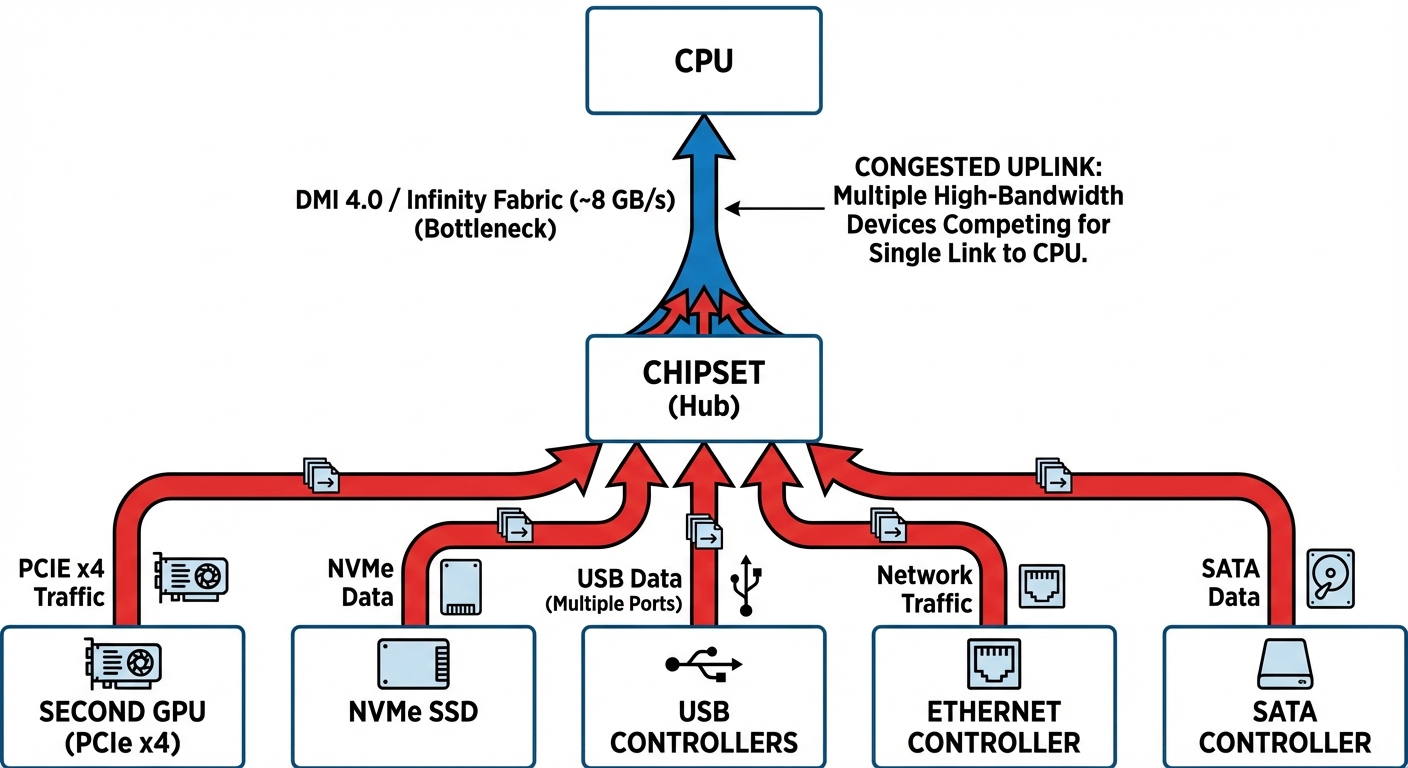
The uplink itself is just a PCIe link (branded DMI on Intel, a dedicated PCIe link on AMD), typically something like PCIe 4.0 x4 to x8 — call it ~8–16 GB/s per direction. That number is the ceiling shared by every chipset-attached device combined. If a second GPU sits behind the chipset, it competes with NVMe, USB, SATA, and the onboard NIC for that same pipe.
Why AI Training Hits This Hard
Gaming involves bursty PCIe traffic—the GPU loads scene data, renders frames internally, then sends finished frames back. AI training maintains sustained high-bandwidth transfers: datasets stream from storage to RAM, batches move to GPU memory, and gradients/checkpoints flow back for saving.
If both the secondary GPU and the NVMe drive sit on the chipset, the worst-case path looks like this:
Device → Chipset → DMI → CPU → RAM → CPU → DMI → Chipset → Device
Every hop contends with the same uplink, and the RAM leg consumes memory bandwidth twice.
GPU Lanes vs Chipset Bandwidth
A chipset-connected GPU typically runs at x4 — roughly 8 GB/s per direction on PCIe 4.0. Whether the GPU’s x4 lanes or the chipset uplink saturates first depends on which is narrower. A narrow uplink (x4) gives out first once disk reads and GPU transfers overlap; a wider uplink (x8) leaves the GPU’s own x4 link as the limiter under moderate I/O load. Either way the second GPU is the one that suffers.
The Double Penalty (Upload + Download)
Both directions hit the same uplink.
Upload (CPU → GPU): training batches travel RAM → chipset → GPU, while NVMe reads simultaneously push storage → chipset → RAM.
Download (GPU → CPU): gradients and checkpoints go GPU → chipset → RAM, and checkpoint writes then push RAM → chipset → storage.
If your NVMe drives also live on the chipset—common in desktop builds—the storage reads, the GPU transfers, and any other chipset I/O (USB, SATA, some NICs) all compete for the same ~8-16 GB/s. A CPU-connected GPU sidesteps this entirely; only storage reads touch the chipset, and the GPU’s data travels on dedicated CPU lanes.
Prefetching mitigates this. Modern frameworks like PyTorch use multi-process data loaders that prefetch batches into RAM while the GPU is still computing. With enough prefetch workers and fast RAM, I/O overlaps compute, which is why chipset GPUs usually do better than raw bandwidth math predicts.
Connecting your primary NVMe drive to a CPU-direct M.2 slot helps too—it removes storage from the chipset contention entirely. The second GPU still operates on x4 through a shared hub, but at least its traffic isn’t competing with disk reads.
Why Inference Doesn’t Care
Inference uses minimal I/O: models load once, inputs are small (kilobytes to megabytes vs gigabyte training batches), and there’s no backward pass. Bandwidth rarely matters when compute dominates. A 1 MB inference input at even 8 GB/s transfers in 0.125 ms—imperceptible compared to inference compute time.
Not every training job is I/O-bound either. If your dataset fits in RAM after the first epoch, or your model has a high compute-to-data ratio (large transformers with modest batch sizes), or you’re using mixed precision, chipset placement barely shows up in the numbers. The workloads that do suffer are the bandwidth-heavy ones: high-resolution vision models, video pipelines, datasets that stream continuously, and frequent checkpointing. That’s where your second GPU earns the “lazy” label.
Lane Allocation in Practice
Whether your second GPU even sees the chipset is a motherboard question. Mainstream desktop CPUs expose a fixed budget of CPU-direct PCIe lanes — commonly 16 lanes reserved for graphics, a handful dedicated to NVMe, and a narrow link for the chipset uplink. Exact counts and generations shift every release, but the shape is stable: a small pool of premium direct lanes, and a larger pool of shared chipset lanes behind the uplink.
The chipset adds more lanes, but all chipset-connected devices share bandwidth through that single link to the CPU. Direct CPU lanes provide dedicated bandwidth; chipset lanes share a common pipe.
Key bandwidth figures (per direction):
- PCIe 3.0 x8: ~7.88 GB/s
- PCIe 4.0 x8: ~15.75 GB/s
- PCIe 5.0 x8: ~31.5 GB/s
PCIe 3.0 x16 provides the same bandwidth as PCIe 4.0 x8 (~15.75 GB/s), so generation matters as much as lane count. A GPU running at x4 has 4× less bandwidth than one at x16 on the same generation, and chipset-connected GPUs almost always land on x4.
Bifurcation: Splitting One x16 Slot Into Two
The CPU’s 16 graphics lanes are physically a single block. By default a board wires all 16 to the first PCIe slot. Bifurcation is the ability to electrically split that block — most commonly into x8/x8 — so a second physical slot can be driven by 8 of those CPU-direct lanes instead of being routed through the chipset. It requires both CPU support (modern desktop CPUs have it) and board firmware support (the vendor has to actually wire a second slot to the right lanes and expose a BIOS option).
Without bifurcation, the first slot keeps all 16 CPU lanes and any second x16-sized slot falls back to x4 chipset lanes — that’s the chipset bottleneck from the previous section. With bifurcation, both GPUs get direct CPU connectivity at x8.
One caveat: some boards drop a PCIe generation when bifurcation is enabled (e.g., Gen 4 x16 becomes Gen 3 x8/x8). Check the manual.
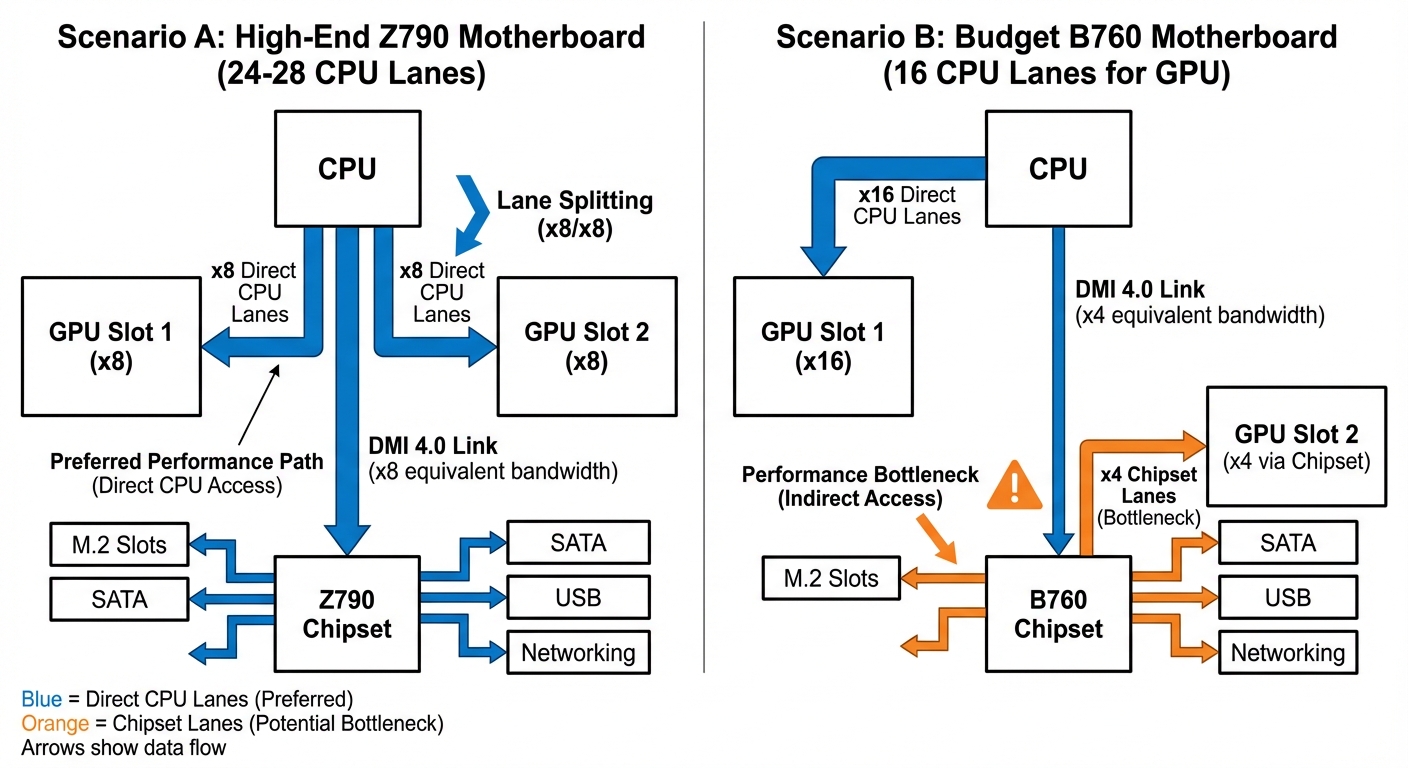
High-End vs Budget Chipset Tiers
The pattern holds across both Intel and AMD, and across generations:
High-end chipsets (the flagship tier on either vendor) generally support bifurcation and expose more chipset lanes at the latest PCIe generation. Dual-GPU x8/x8 on CPU-direct lanes is usually achievable.
Budget chipsets may or may not support bifurcation — it varies board-by-board even within the same chipset tier, because it’s ultimately a board-vendor decision. Chipset lanes are often a generation behind the CPU lanes. If bifurcation isn’t supported, the second slot is guaranteed to land on x4 chipset lanes.
The vendor branding changes every generation; the decision tree doesn’t. Find your board’s PCIe block diagram and check: does the second x16-sized slot route to the CPU (via bifurcation) or to the chipset?
Scenario A: With Bifurcation
- GPU 1: x8 direct CPU lanes
- GPU 2: x8 direct CPU lanes
- M.2 slots use dedicated CPU lanes or chipset lanes
For multi-GPU AI workloads where both GPUs process different batches in parallel, x8 provides sufficient bandwidth. Bottlenecks appear when GPUs need frequent synchronization or large model transfers between devices — scenarios uncommon in typical inference or training setups where each GPU works on independent data.
Scenario B: Without Bifurcation
- GPU 1: x16 direct CPU lanes
- GPU 2: x4 through chipset (shared bandwidth)
The chipset uplink (~8–16 GB/s depending on platform) is shared across every chipset device — SATA drives, USB controllers, network adapters, additional M.2 slots, and your second GPU. Under heavy concurrent I/O, the second GPU can effectively get a fraction of its nominal x4 bandwidth.
Lane Reallocation Options
Some motherboards allow trading M.2 slots for GPU connectivity. Disabling specific M.2 slots in BIOS can reallocate those CPU lanes to the second PCIe slot—potentially upgrading it from x4 chipset lanes to x4 direct CPU lanes. Your motherboard manual’s PCIe configuration matrix documents which slots share lanes and available reallocation options. Look for BIOS settings labeled “PCIe Slot Configuration,” “M.2/PCIe Sharing,” or “Bifurcation Mode.” Budget boards often hard-wire the configuration with no user control.
Asymmetric GPU Setups
For asymmetric configurations (e.g., RTX 4090 + RTX 3060), allocate all x16 lanes to the stronger GPU. Performance loss on the weaker card matters less for secondary tasks like inference on small models or video encoding.
Verify Your Current Configuration
Check your motherboard manual for the PCIe configuration matrix and block diagrams showing CPU vs chipset routing. Look for notes like “Slot 2 operates at x4 and shares bandwidth with M.2_3.”
To verify your running system’s actual configuration, use GPU-Z or HWiNFO—check both link width (x8/x16) and PCIe generation (3.0/4.0/5.0). BIOS settings don’t always reflect what’s actually negotiated.
Lane allocation determines theoretical maximum bandwidth to each GPU. The difference between x8 direct CPU lanes and x4 shared chipset lanes is measurable in multi-GPU AI work—but how much does it matter for your specific workload?
The Balancing Act: When Equal Isn’t Optimal
Splitting PCIe lanes x8/x8 between two GPUs reduces each GPU’s bandwidth. This matters when your workload consistently saturates PCIe utilization above 70-80% during execution—brief spikes are usually fine.
When Concentration Beats Distribution
A deep learning training job that saturates PCIe bandwidth during data loading becomes bandwidth-constrained when you split lanes:
- Two x8 GPUs (PCIe 3.0): Each gets ~7.88 GB/s per direction, both training slower than optimal
- One x16 GPU (PCIe 3.0): Gets ~15.75 GB/s per direction, trains at maximum throughput
- Two x8 GPUs (PCIe 4.0): Each gets ~15.75 GB/s per direction—often sufficient
PCIe generation matters. An x8 Gen4 link provides the same bandwidth as x16 Gen3, so the x8/x8 split becomes much less problematic on newer platforms.
For a single training job that doesn’t parallelize across GPUs, one GPU at x16 may complete it faster than running the same job on one of two x8 GPUs. If bandwidth constraints limit each GPU to 60% of optimal speed, two GPUs provide 1.2x throughput versus one x16 GPU—better than one GPU alone, but you paid for two GPUs and didn’t get 2x throughput. Whether this matters depends on whether you have parallel workloads to fill both cards.
The Big & Small Strategy
For mixed workloads, consider an asymmetric configuration:
Big GPU (Slot 1, x16): High-performance card for training or compute-intensive tasks Small GPU (Slot 2, x8 or x4): Lower-end card (like a GTX 1650 or similar) for display output, video encoding, or light inference
Your primary workload runs at full bandwidth while the secondary GPU handles desktop compositing, Jupyter notebooks, or driving multiple monitors. While modern GPUs handle desktop compositing easily, dedicating a separate card avoids VRAM fragmentation and ensures your big GPU’s full memory is available for training.
Critical limitation: Many consumer boards drop slot 1 to x8 when populating slot 2, though higher-end chipsets (X570, Z690+) often support x16 + x4. For x16 + x8 simultaneously, you typically need HEDT platforms (Threadripper, Xeon W). Verify your specific board’s PCIe topology in the manual.
When to Split, When Not to
Before deciding on lane distribution:
When x8/x8 makes sense:
- Models that fit entirely in VRAM with minimal host transfers
- Inference serving where GPU compute is the bottleneck, not data loading
- Pure compute workloads with infrequent synchronization
- PCIe 4.0 or 5.0 systems where x8 provides ample bandwidth
When x16 (or x16 + x4) makes sense:
- Training large models with frequent host-device transfers
- High-resolution image processing requiring data streaming from system RAM
- Workloads with non-pinned memory transfers (check PyTorch DataLoader
pin_memorysetting—unpinned transfers are significantly slower) - PCIe 3.0 systems with bandwidth-sensitive workloads
Measure actual PCIe utilization during your typical workload using nvidia-smi dmon -s pcie or profiling tools like Nsight Systems. Check link throughput numbers before assuming you’re bandwidth-limited.
Diagnosing Your Bottlenecks
Before optimizing for I/O bottlenecks, confirm they’re actually your problem.
GPU Topology
Check your hardware layout:
nvidia-smi topo -m # Show GPU topology and connection types
Connection types you’ll see:
NVLink: Direct GPU-to-GPU interconnect (ideal)PHB: Same PCIe host bridge (good)PIX: PCIe switch connection (acceptable)SYS: Cross-CPU socket communication (slower)
If GPU 1 has SYS connections while GPU 0 has PHB, you have asymmetric topology. The GPU closer to the CPU/PCIe root complex (typically GPU 0) gets lower-latency access to system memory and storage, while the second GPU traverses additional PCIe hops.
Monitor Real-Time PCIe Bandwidth
Watch PCIe traffic during training:
nvidia-smi dmon -s pucvmet # p=power, u=utilization, c=clocks, v=voltage, m=memory, e=encoder, t=temperature
Focus on the pcie_tx and pcie_rx columns showing PCIe throughput in MB/s.
Run this during training and watch for:
- PCIe rx bandwidth hitting ~12-14 GB/s on PCIe 3.0 x16 (theoretical max is 15.75 GB/s, but protocol overhead reduces usable bandwidth to ~80%)
- GPU utilization (sm) dropping to 60-80% when bandwidth saturates
- Asymmetric patterns: GPU 0 at 95% utilization while GPU 1 fluctuates between 50-90%
Compare Per-GPU Training Throughput
Measure samples/second on each GPU. In DDP training, use rank to identify GPUs:
import time
import torch.distributed as dist
from collections import defaultdict

throughput_stats = defaultdict(list)

for batch in dataloader:
    start = time.perf_counter()
    # ... training step ...
    elapsed = time.perf_counter() - start

    samples_per_sec = batch_size / elapsed
    gpu_id = dist.get_rank()  # In DDP, rank corresponds to GPU
    throughput_stats[gpu_id].append(samples_per_sec)
If GPU 1 consistently processes 20-30% fewer samples per second than GPU 0, you’ve found asymmetric data delivery.
Run P2P Bandwidth Tests
Measure actual GPU-to-GPU transfer speeds:
import torch

size = 1024 * 1024 * 1024  # 1GB
iters = 20
src, dst = 'cuda:0', 'cuda:1'

x = torch.empty(size, dtype=torch.uint8, device=src)
start, end = torch.cuda.Event(enable_timing=True), torch.cuda.Event(enable_timing=True)

# Warmup & Sync
for _ in range(5): x.to(dst)
torch.cuda.synchronize(src); torch.cuda.synchronize(dst)

# Benchmark
start.record()
for _ in range(iters): x.to(dst)
end.record()
torch.cuda.synchronize(dst)

# Result (GB/s)
avg_ms = start.elapsed_time(end) / iters
gbps = (size / (avg_ms / 1000)) / 1e9
print(f"P2P Bandwidth: {gbps:.2f} GB/s")
Expected bandwidth:
- *NVLink: 25-50 GB/s per link (GPUs like V100, A100)
- PCIe 3.0 x16: 12-14 GB/s unidirectional
- PCIe 4.0 x16: 24-28 GB/s unidirectional
If you’re getting significantly less, there’s congestion or misconfiguration.
Watch for Data Loading Phase Drops
GPU utilization plummeting during data loading indicates I/O starvation. Run nvidia-smi dmon and watch the sm (streaming multiprocessor) utilization:
# GPU 0: 98% -> 95% -> 97% -> 96%  (steady)
# GPU 1: 92% -> 65% -> 88% -> 58%  (drops during I/O)
GPU 1 is waiting for data while GPU 0 has priority access to the shared I/O path.
Red Flags Summary
You have an I/O bottleneck if (thresholds are approximate, vary by workload):
- PCIe bandwidth consistently saturates (>90% of theoretical max)
- GPU 1 utilization drops 15-30% below GPU 0 during training
- Per-GPU throughput shows 20%+ asymmetry
- P2P bandwidth tests show unexpectedly low cross-GPU speeds
nvidia-smi dmonshows correlated drops insmutilization when PCIerxsaturates
If you’ve confirmed bottlenecks and need maximum performance, there’s a more drastic solution.
HEDT and Beyond
Desktop platforms bottleneck 3-4 GPU configurations. A Ryzen 9 7950X provides 24 PCIe 5.0 lanes from the CPU; Intel Core i9-13900K/14900K provide 20 lanes (16 PCIe 5.0 + 4 PCIe 4.0). Chipsets add lanes, but they connect through a shared uplink to the CPU—these aren’t direct CPU lanes with the same bandwidth characteristics. Beyond the bandwidth split, desktop motherboards often can’t physically accommodate 4 dual-slot GPUs, and the fourth slot typically shares lanes with M.2 or other peripherals.
PCIe 5.0 x8 provides the same bandwidth as PCIe 4.0 x16 (~32 GB/s bidirectional), so a 24-lane PCIe 5.0 CPU can theoretically run 3 GPUs at full PCIe 4.0 equivalent bandwidth. For 3-GPU configurations where the GPUs support PCIe 5.0, this works. But most workstation GPUs (A5000, A6000) and current-generation consumer cards still use PCIe 4.0, and you still hit physical slot limitations. Moving to 4 GPUs definitively requires more lanes.
High-End Desktop (HEDT) and server platforms provide dramatically more PCIe lanes directly from the CPU:
Direct CPU PCIe Lanes:
- Mainstream desktop (Ryzen 9 7950X): 24 lanes PCIe 5.0
- Mainstream desktop (Core i9-13900K): 20 lanes (16 Gen5 + 4 Gen4)
- Threadripper Pro 5000WX: 128 lanes PCIe 4.0
- EPYC 7003/9004: 128 lanes PCIe 4.0/5.0 (single socket)
- Xeon-W 3400: 64 lanes PCIe 5.0
With Threadripper Pro or EPYC, you get 4 GPUs at full x16 bandwidth (64 lanes), with 48+ lanes remaining for NVMe, networking, and expansion. HEDT platforms also support PCIe bifurcation across most slots, allowing flexible configurations that desktop boards rarely enable.
Not all 128 lanes on EPYC/Threadripper Pro are available for PCIe slots. Platforms reserve lanes for chipset connectivity, BMC, and onboard devices. Expect 96-112 lanes available for expansion cards.
HEDT platforms also offer quad-channel (Threadripper Pro) or octo-channel (EPYC) memory bandwidth, which matters for workloads that move large datasets between system RAM and GPU memory.
When the Platform Investment Pays Off
A typical high-end GPU costs $1,600-2,000 (RTX 4090, A5000). Four of them: $6,400-8,000. A Threadripper Pro workstation costs $3,000-6,000 more than a comparable desktop build once you factor in the CPU ($1,500-5,000+), TRX50 motherboard ($800-1,200), and quad-channel ECC memory requirements.
If your workload saturates multiple GPUs simultaneously—data-parallel ML training, multi-GPU rendering, parallel simulation—investing in the platform to maximize GPU utilization makes the GPU array worth the cost. Stick with desktop platforms if you’re running one GPU-intensive task at a time or your workload doesn’t scale beyond 2 GPUs. HEDT is for scenarios where GPU utilization is the bottleneck, not CPU cores or memory.
Beyond PCIe: NCCL, NVLink, and GPUDirect Storage
Once you have enough lanes, the remaining bandwidth wins come from bypassing the default “data must travel through RAM” policy. On Linux, NCCL (NVIDIA Collective Communications Library) maps the system topology—not just which CPU a GPU hangs off, but which Root Complex within that CPU—and opens P2P DMA paths between GPUs whenever the hardware permits. When NCCL can use P2P, gradient synchronization stops making the RAM detour and the memory-bandwidth contention described earlier goes away.
PCIe is still the ceiling, though. NVLink is NVIDIA’s direct GPU-to-GPU interconnect that skips PCIe entirely. An H100 reaches ~900 GB/s of aggregate NVLink bandwidth across 18 links, compared to ~63 GB/s for PCIe 5.0 x16. When NCCL detects NVLink, it stops looking at PCIe topology and routes collective traffic over the dedicated links. NVLink also supports cache-coherent memory access between connected GPUs—remote VRAM is reachable like a NUMA memory region, slower than local but far faster than anything crossing system RAM.
Topology still matters: NVLink is point-to-point, so not every GPU pair is directly connected. NVSwitch fixes that with a switch fabric. In an NVIDIA DGX H100, four NVSwitches give all 8 GPUs non-blocking all-to-all NVLink bandwidth. AMD’s Infinity Fabric and Intel’s Xe Link fill similar roles in their ecosystems; for NVIDIA GPUs, NVLink is the only option with a mature software stack.
Storage has an analogous bypass. The traditional path is:
Storage → RAM → CPU (bounce buffer) → GPU
GPUDirect Storage (GDS) collapses it to:
Storage → GPU (via DMA)
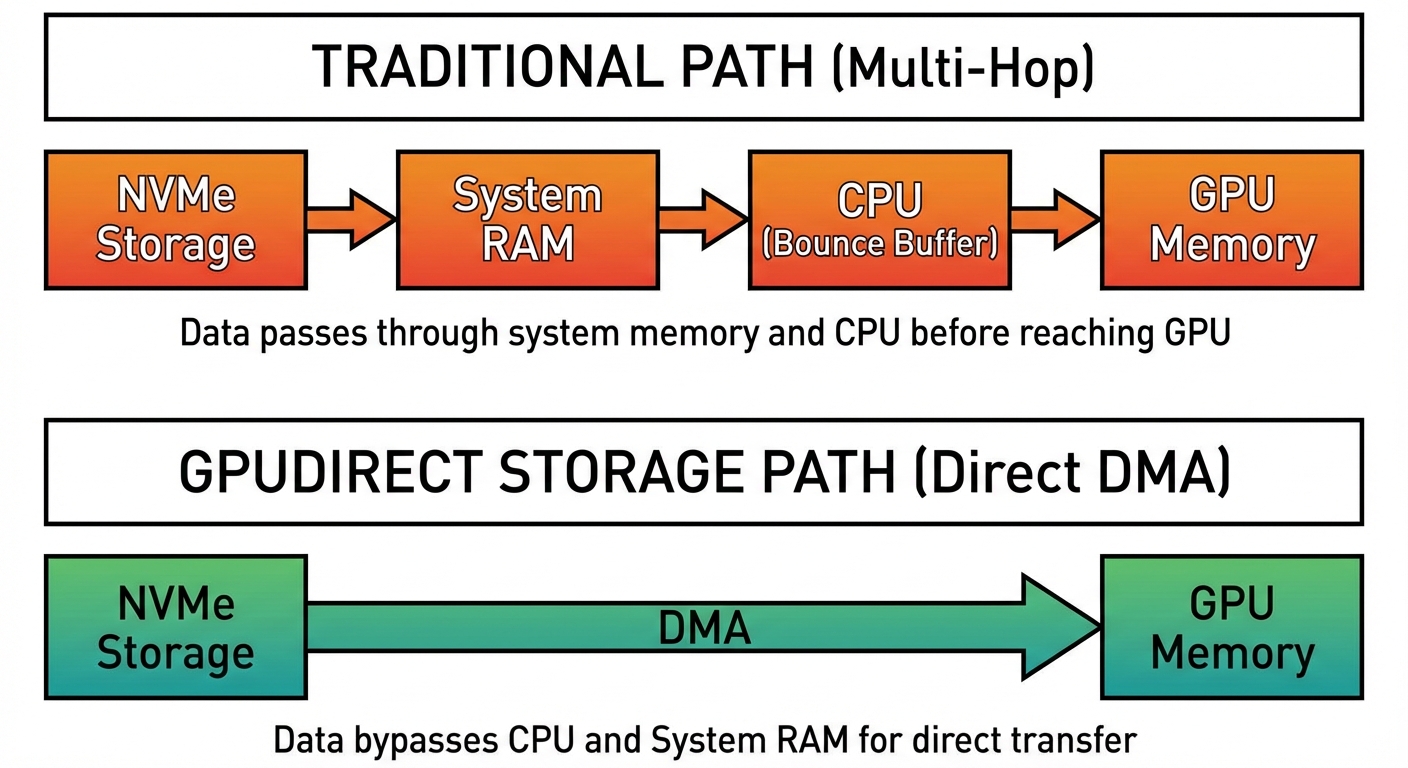
GDS requires PCIe peer-to-peer support so the NVMe controller can DMA directly into GPU BAR memory. Not every controller and BIOS permits it—in practice this is a datacenter-class feature. When it works, you get higher bandwidth (no CPU/memory ceiling), lower latency (one transfer instead of two), and a CPU freed up for preprocessing and scheduling.
These techniques represent the far end of the bandwidth spectrum. They’re not practical for most desktops, but they’re the natural extension of the same principle: keep data off the shared paths whenever you can.
Conclusion: Matching Hardware to Workload
The x86 PCIe topology determines multi-GPU performance more than most spec sheets reveal. Your CPU dictates how many lanes are available, and your motherboard decides how to split them—usually in ways that prioritize single-GPU configurations.
Before you buy:
Check your motherboard’s manual for actual lane allocation. A board advertising “3x PCIe x16 slots” often runs them at x16/x0/x4 or x8/x8/x4 under load. Those numbers matter when you’re pushing 12GB/s per GPU.
Before you optimize:
Measure your actual bottleneck. Run nvidia-smi dmon -s pucvmet during training to see PCIe throughput. If you’re hitting 90%+ GPU utilization with x8 lanes, your bottleneck isn’t I/O—it’s elsewhere in your pipeline. Adding lanes won’t help.
Platform reality:
Desktop CPUs (Ryzen 5/7, Core i5/i7/i9) typically provide 20-24 usable PCIe lanes total. That’s enough for two GPUs at x8 plus NVMe storage. Need three or four high-bandwidth GPUs? That’s what Threadripper, Xeon W, and EPYC exist for—they offer 64-128 lanes but cost accordingly.
Economic optimization:
A $2000 HEDT platform makes sense when you need 4x A6000s running at x16. It doesn’t make sense for running Stable Diffusion twice as fast. Match your hardware investment to workload revenue or time savings. “Good enough” is often optimal when x8 gives you 95% of x16 performance.
The real question isn’t “can I run multiple GPUs”—it’s “does my workload justify the platform that supports them properly.” Armed with PCIe topology knowledge, you can answer that honestly and avoid both under-buying (x4 bottlenecks) and over-buying (unused lanes on a $3000 motherboard).
Check your lanes, measure your bottlenecks, buy what you’ll actually use.